



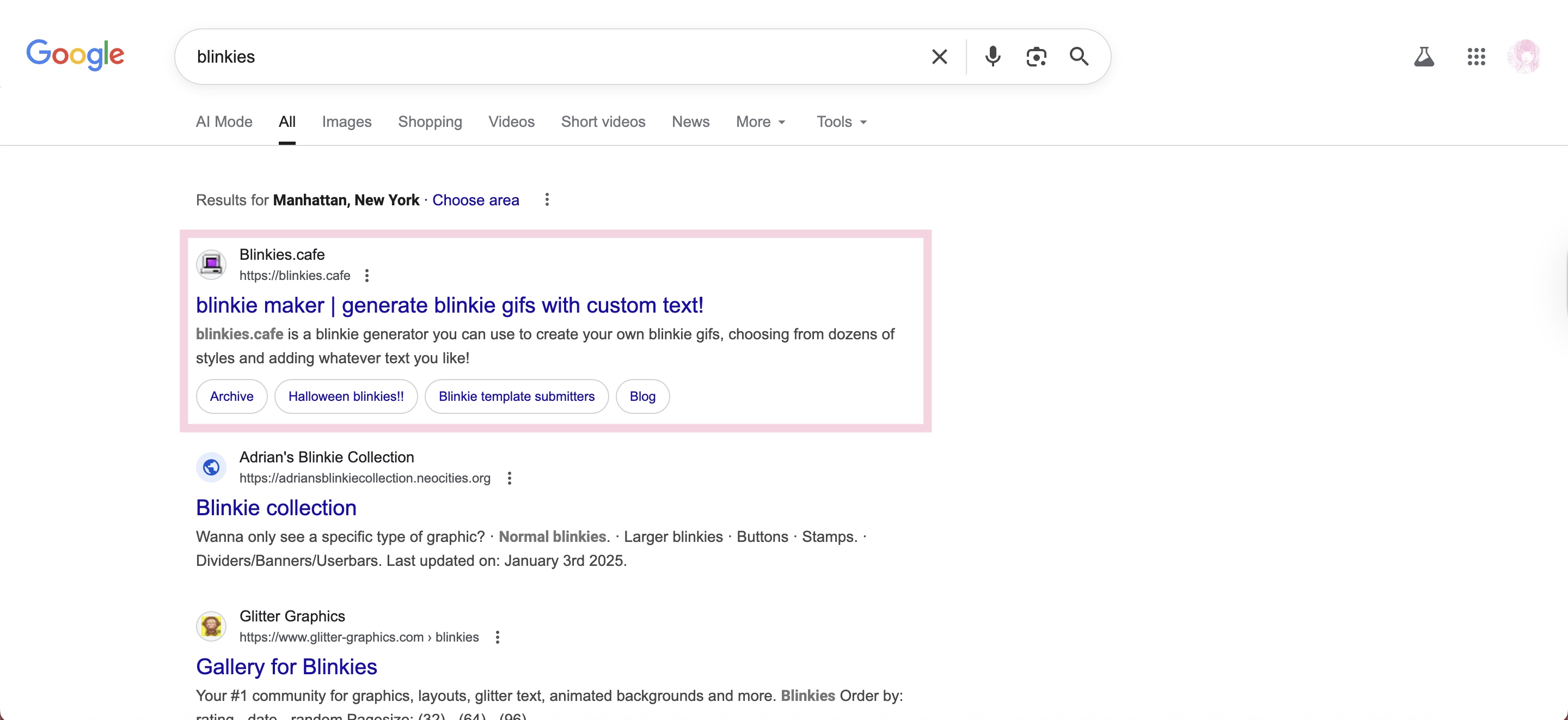
step 1: search up for blinkie resources. i like to use blinkies.cafe since their blinkies are customizable.
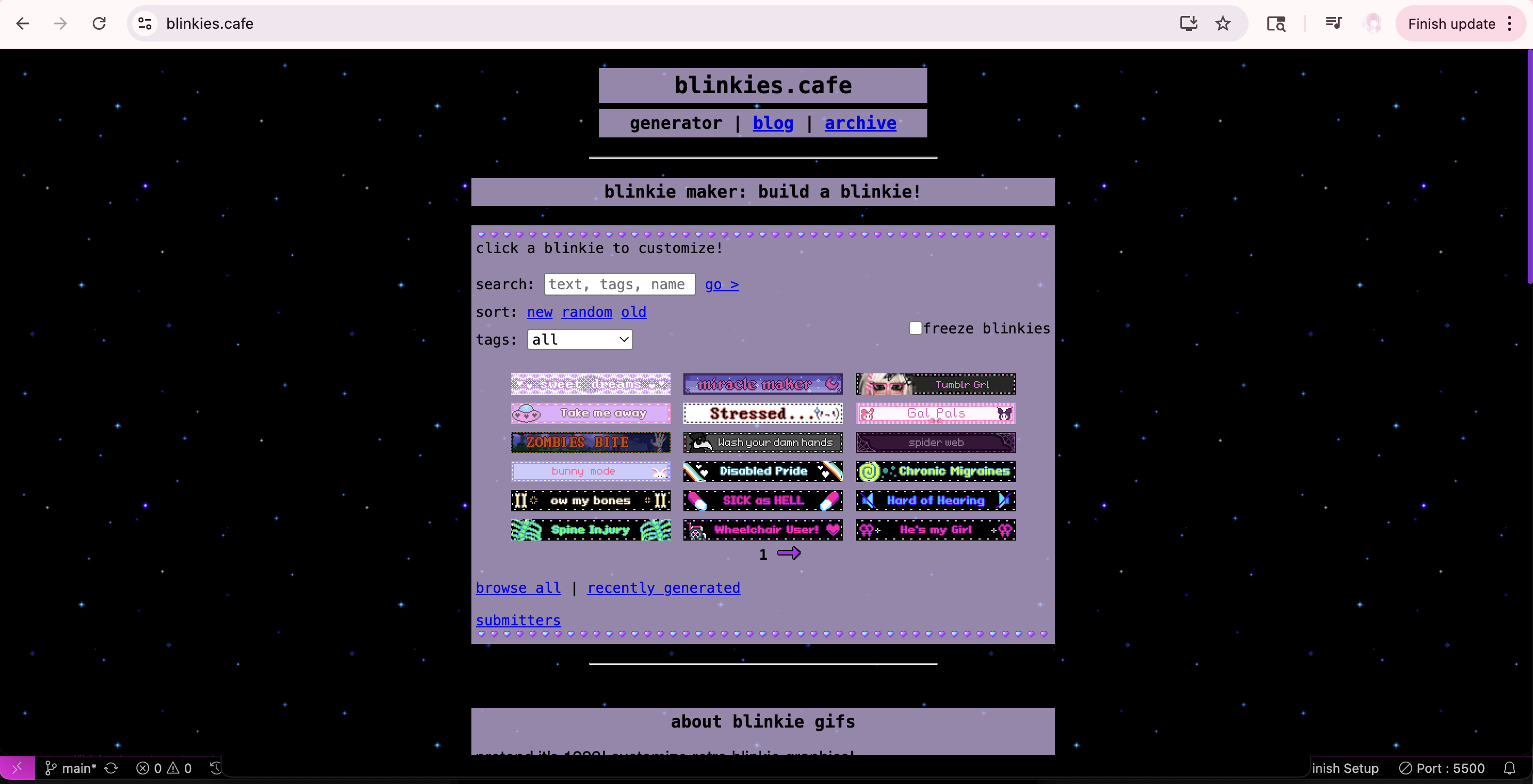
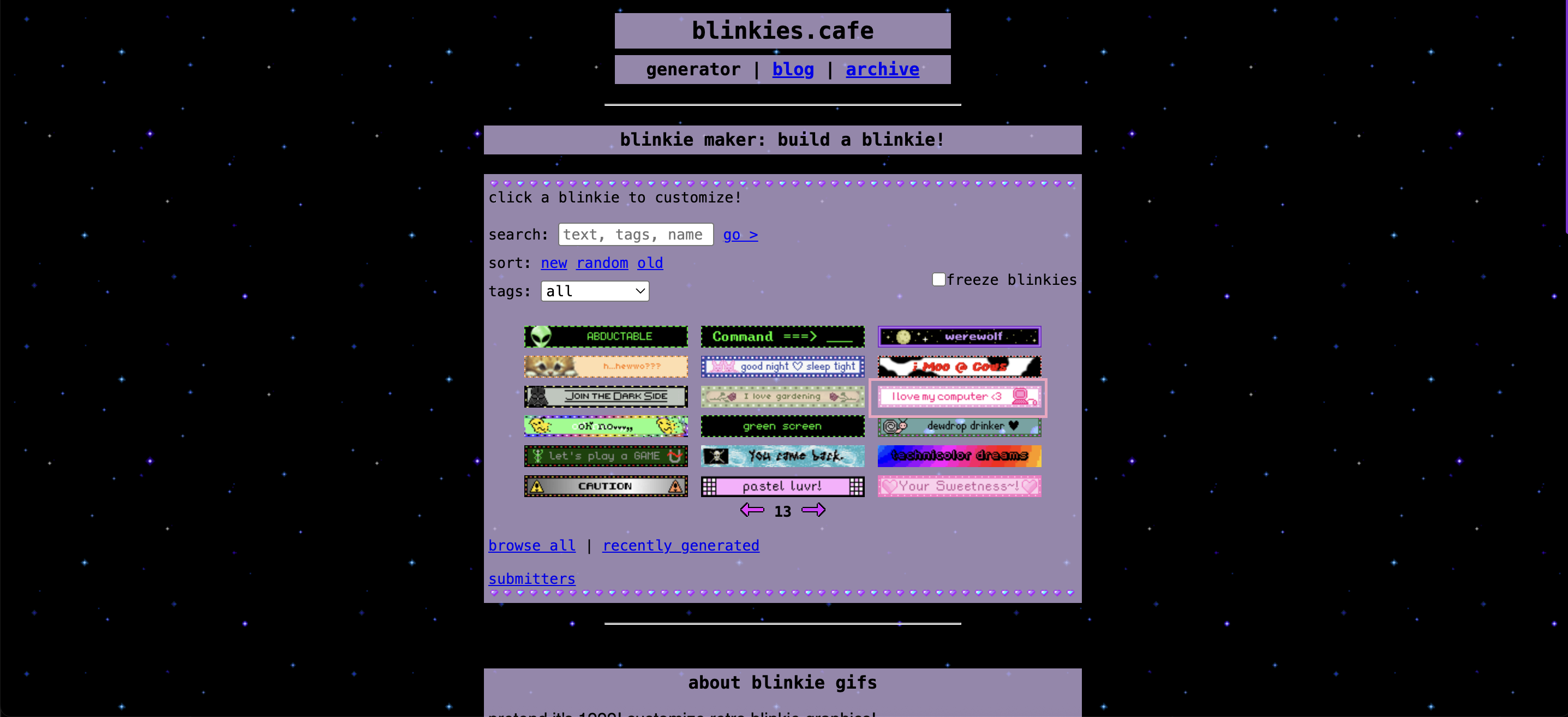
step 2: click on the website (recommended to be on blinkies.cafe as the next steps apply to this, if you aren't, then follow steps 2 to step 3 part 3 of pixels. you can achieve a similar effect. however, come back to additional notes for blinkies.) anyway, browse through the different blinkies until you find one you like and click on it. don't worry, as i mentioned before, you can customize the blinkies in blinkies-cafe.
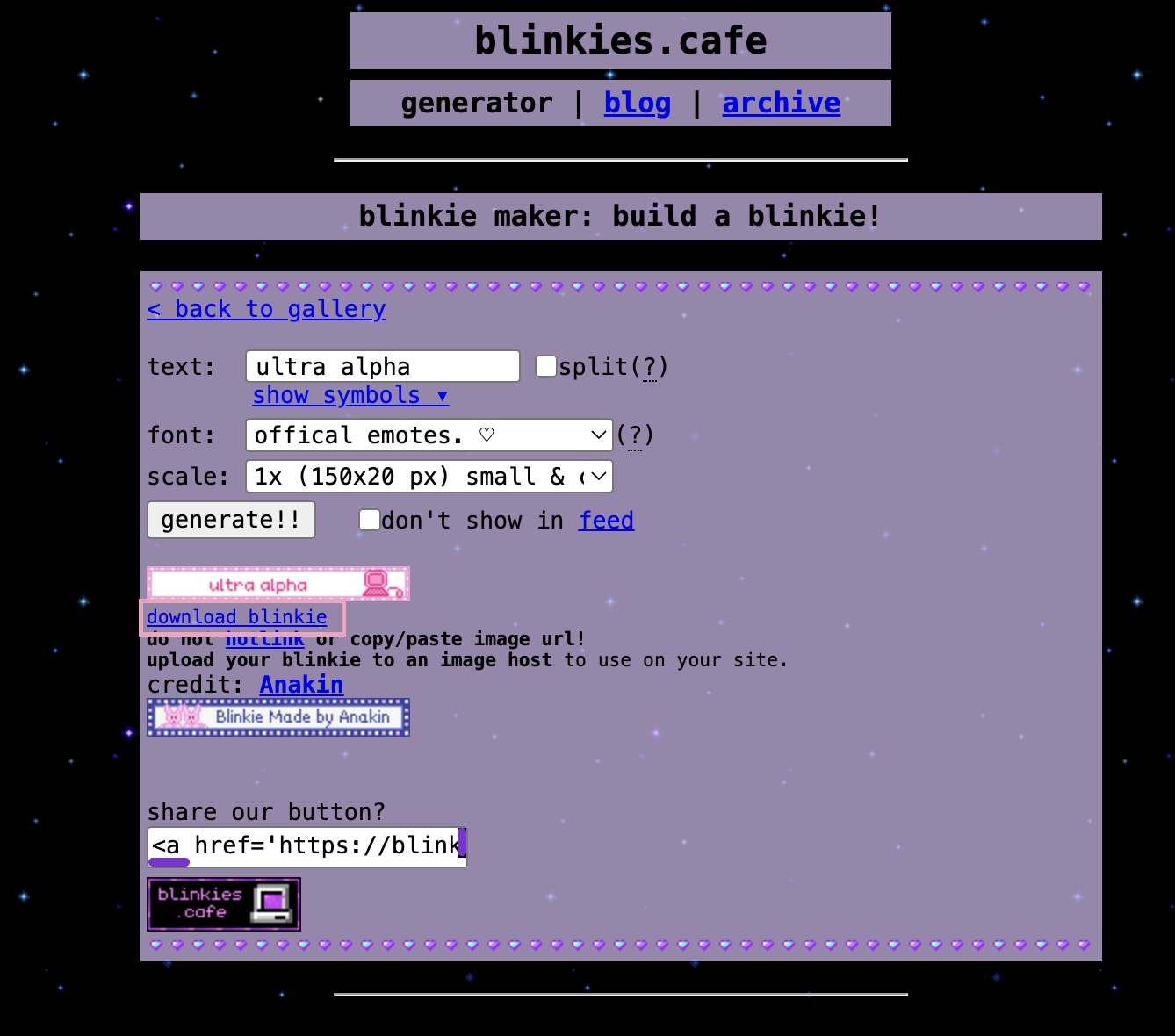
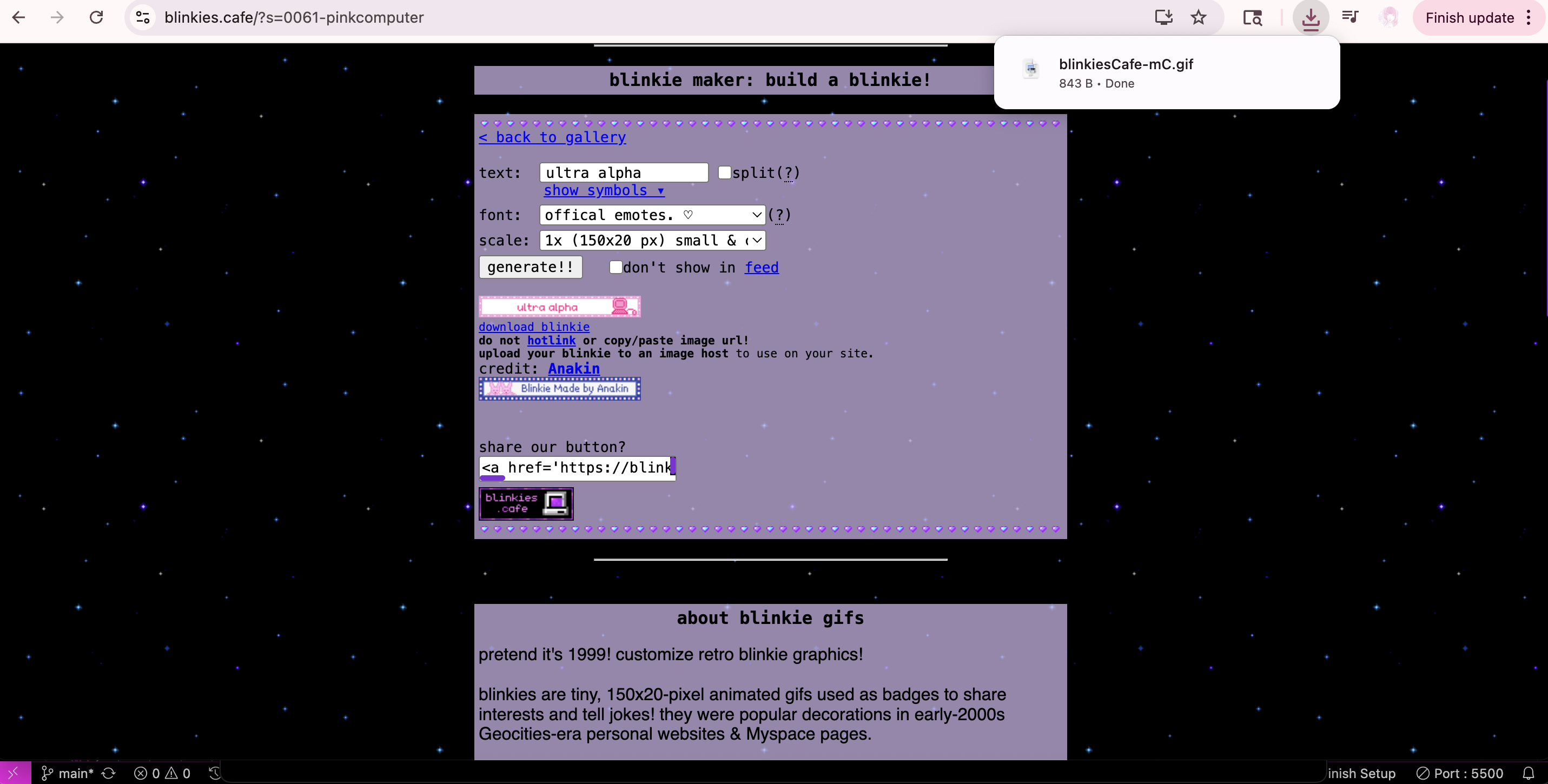
step 3: anyway, what should appear is a customizable panel. you can adjust the text, fonts, scale, etc to whatever you want. then, click the download button.
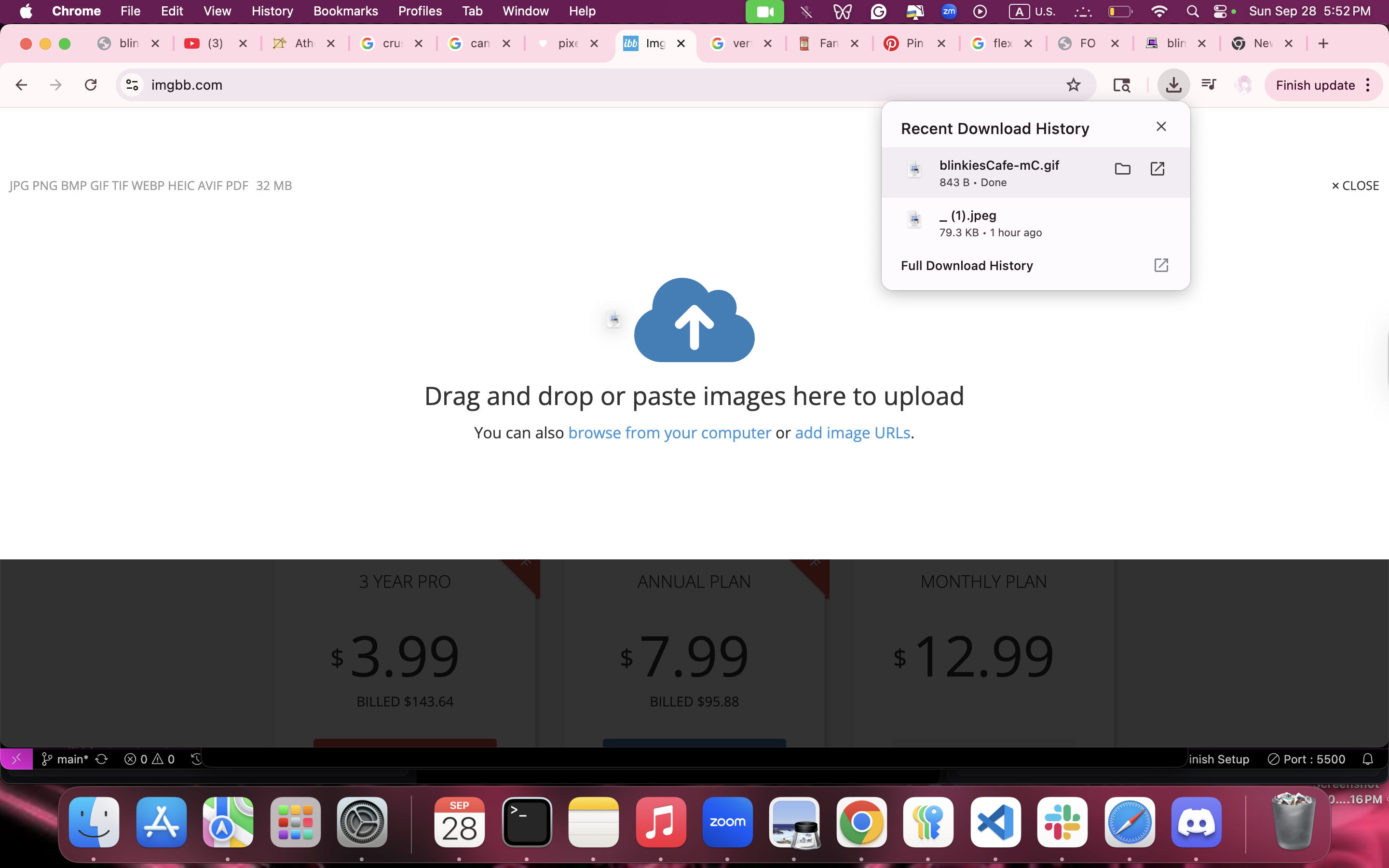
step 4: go to imgbb and drag the downloaded files into the uploaded section.
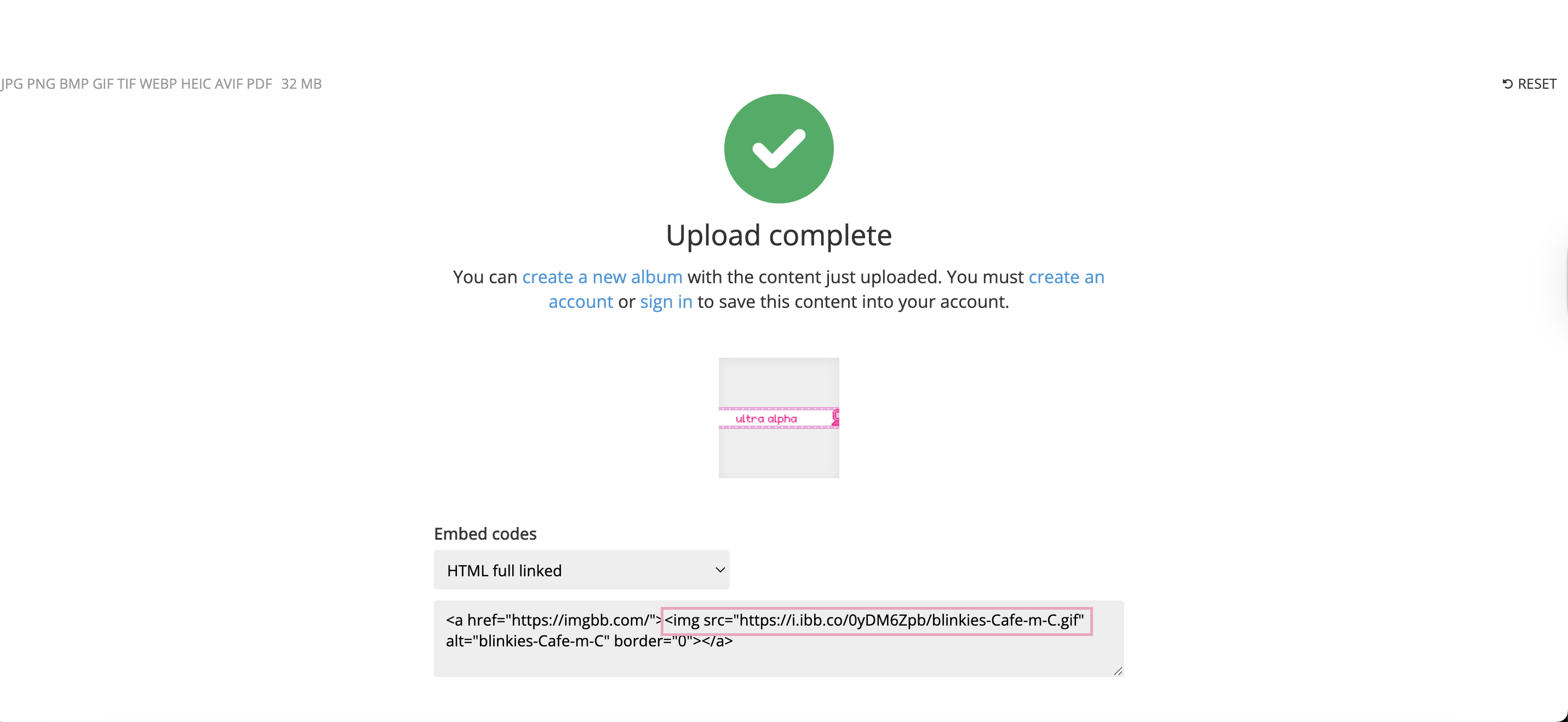
step 5: it will automatically upload the image in the HTML full linked version (if that doesn't show up, then click the menu underneath embed codes. HTML full linked version should appear there. click it) copy this section of the link, from "greater than symbol + "img" to ".gif," as boxed in pink.

step 3/part 3: NOW paste this section of the link into your code. Add alt = "whatever-your-text-is" depending on what you put for your blinkie text to make things more accessible for people hehe.

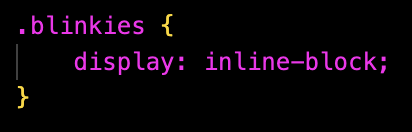
addtiional note: by default, the blinkies will display as block, meaning that they will appear under your text. if that's your intention, keep it like this, OR
define your img class as whatever you want (i chose pixels) and in CSS, enter the class name and display: inline-block. If you want to add more pixels like that, put them in
the same class.

addtiional note (1): by default, the blinkies will display as block, meaning that they will appear under your text. if that's your intention, keep it like this, OR
define your img class as whatever you want (i chose pixels) and in CSS, enter the class name and display: inline-block.

addtiional note: by default, the blinkies will display as block, meaning that they will appear under your text. if that's your intention, keep it like this, OR
define your img class as whatever you want (i chose pixels) and in CSS, enter the class name and display: inline-block. If you want to add more pixels like that, put them in
the same class. also if you want the blinkie to serve as a button, wrap the img tag in a link tag as shown above (with the "a" tag as shown above.)
addtiional note (2): also if you want the blinkie to serve as a button, wrap the img tag in a link tag as shown above (with the "a" tag as shown above.)

AND YOU'RE DONE!!!! Now you're an alpha like me (I'm still ultra alpha, so does that count?? [jk])
scroll up/down if needed! plus you can also click the circles to navigate :p